
Help
Using the trugs Card Table
Anyone can play the games. The Tutor menu, with stages, printable Card Packs, stories, Cloud Table and players, is for signed-in tutors and teachers.
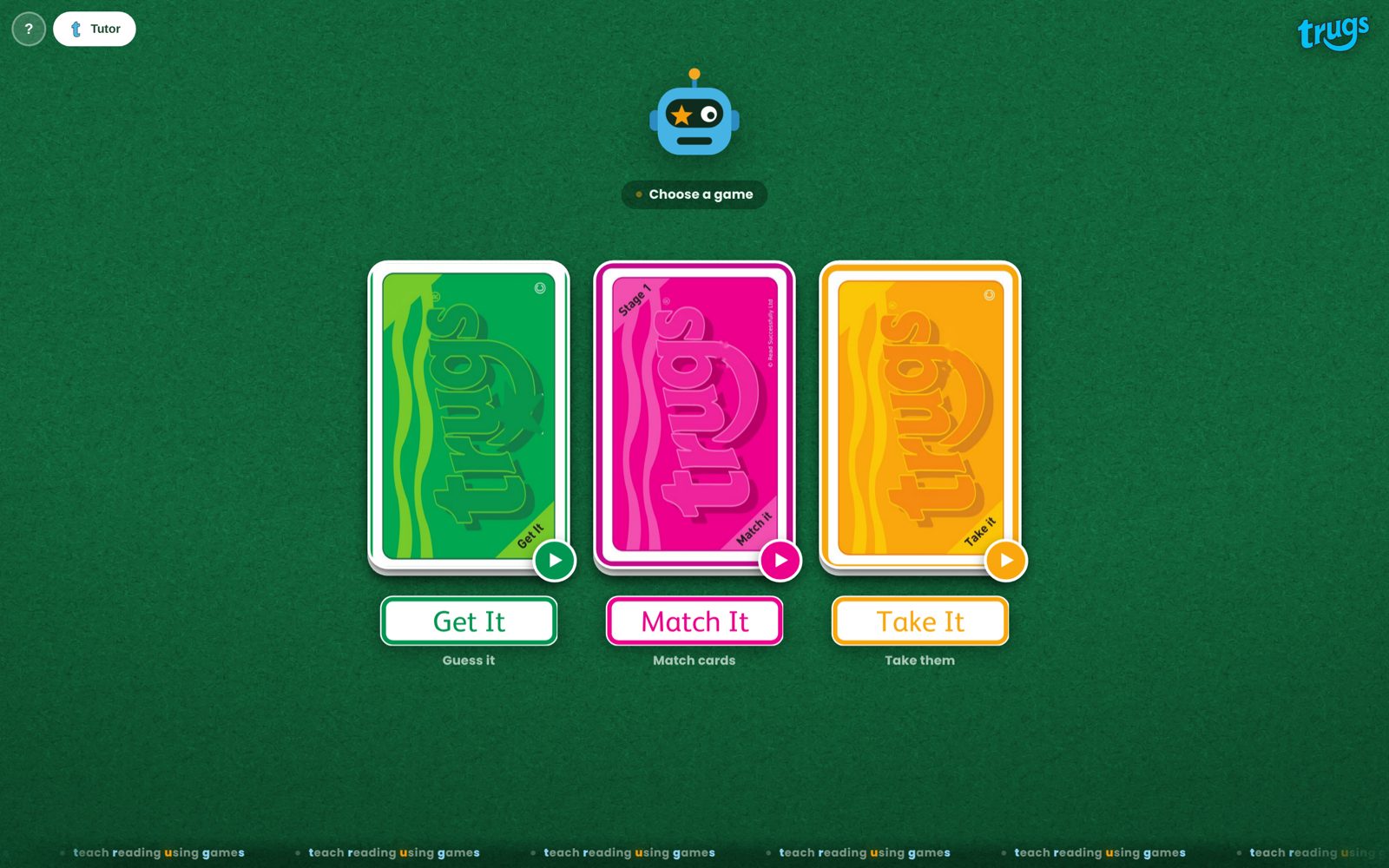
The Tutor button is at the top left of the Card Table.
Getting in
Three ways to use the Tutor menu
Tutor Pack members
One click from your account
Log in to Read Successfully and open My Tutor Pack. Press Open Card Table: you arrive signed in, with no second login.
Schools
Your school license key
Sign in with your school email, then add the license key your school was sent. One key covers your whole school.
Trying it out
30 days free
Sign in with your email to try the Tutor menu free for 30 days. After that, add a school key or join the Tutor Pack.
Step by step
Signing in
There’s no password to remember. We email you a link and a code each time you sign in on a new device.
-
Open the Card Table
Go to cardtable.trugsgames.com and press Tutor at the top left.
-
Enter your email
Type your email address and tick I’m a teacher, tutor or parent aged 18+. Then press Email me a sign-in link.
-
Open the email
Look for Your trugs Card Table code. Press the link in it, or type the 6-digit code into the Card Table. The code works for 15 minutes.
-
You’re in
The Tutor menu opens. You stay signed in on that device for 90 days.
For schools
Adding your school license key
Your school gets one license key when it buys a trugs school license. Every teacher and teaching assistant uses the same key with their own sign-in. Ask whoever placed the order, or look in the order email from Read Successfully.
-
Sign in
Sign in as above, using your school email address.
-
Open Account
Press Tutor, then Account at the bottom of the menu.
-
Add the key
Paste the key into School license key and press Add. You’ll see Key added.
Leaving your school?
Open Account and press Remove key, then press it again to confirm. This frees your place for someone else at your school.
Prefer a password?
In Account you can set a password of at least 10 characters, so you can sign in without email. Tutor Pack members change their password on the Read Successfully site.
Inside the Tutor menu
What you can do once you’re signed in
-
trugs Stages & Card Packs
All fifteen stages and the Tricky Words decks: view the words, play, and print any pack.
-
trugs Story Bookshelf
Decodable stories matched to each stage, to read together on screen.
-
trugs Cloud Table
Two devices, one game: start a table and share the link.
-
Players
Add the learners at the table. Only their initials appear in the games.
-
Account
Your sign-in, school license key and optional password.
Questions
Common questions
Can’t find the answer? Email us and we’ll help.
Do learners need an account?
No. Learners never sign in. They just play the games. Signing in is only for adults (teachers, tutors and parents), to open the Tutor menu.
The email hasn’t arrived
Wait a minute, then check your junk or spam folder. School email systems sometimes hold new senders, so ask your IT team to allow emails from trugsgames.com. You can request up to five emails an hour; if you reach that, use the code from the last email.
It says my code has expired
Codes work for 15 minutes. Press the button to send a new one.
Do I need to sign in on every device?
Yes, once on each device and browser you use. After that you stay signed in for 90 days.
My trial has ended
Add your school’s license key in Account, or join the Tutor Pack to keep using the Tutor menu. The games themselves stay free to play.
Is this the same as the iPad apps?
The games are the same. The trugs Digital Editions for iPad and iPhone (currently free) are separate apps and don’t need a sign-in.